


3 easy steps to backup your files to Koofr with Duplicati (Windows)
A quick tutorial on how to regularly backup files from your Windows computer to Koofr. Using the open-source backup solution Duplicati and WebDAV protocol, you can easily set up a regular backup to Koofr and never worry about losing your files again.
Written by human for humans
To backup or not to backup, that is not the question. The real question is how to backup your data. Computers sometimes stop working for no reason. And sometimes they get stolen. More than 50% of people know someone who has lost his data due to any number of reasons and believe me; you do not want to be part of that statistic.
The best way to create a backup is to store it in a different physical location, and Koofr can help you with that.
So, what do I need to create a backup?
- A computer, running a recent version of the Windows operating system (you can follow similar steps on other operating systems).
- Files to backup. It may be your precious holiday photos, a draft of your next best-selling novel or important documents of your small business.
- Backup software. We will use Duplicati, which is an open-source backup solution. With the free version, you get access to the Insights dashboard, remote management, monitoring for up to 5 machines, visibility into the last 200 backups, and up to one year of monitoring history.
- Koofr account. Choose between various plans with amazing features like Microsoft office for the web, Duplicate file finder, Image editor and so much more.
For this article, the steps were done on a Windows PC. These instructions work the same way on Linux.
Welcome to Koofr. First 10 GB are free forever.
Lets prepare
First, get your Koofr account if you do not have one yet. You will need it later. Then, go to Duplicati and click on Get started. You need to sign up / log in and set up 2FA, select organisation type and choose how often you want to receive reports. Don’t forget to agree with Duplicati’s Terms of service and Privacy policy. If you already have an account, simply login and click on Get started in the left menu.
Download client for Windows. Before downloading, check your computer’s processor architecture (x64, ARM, or x86) in the system information and choose the version that matches it.
Setup the backup
Open Duplicati by going to the Start Menu and typing Duplicati in the search bar. Or perhaps you'll just have a handy icon on your desktop. When you click on it, Duplicati will open in your preferred browser.
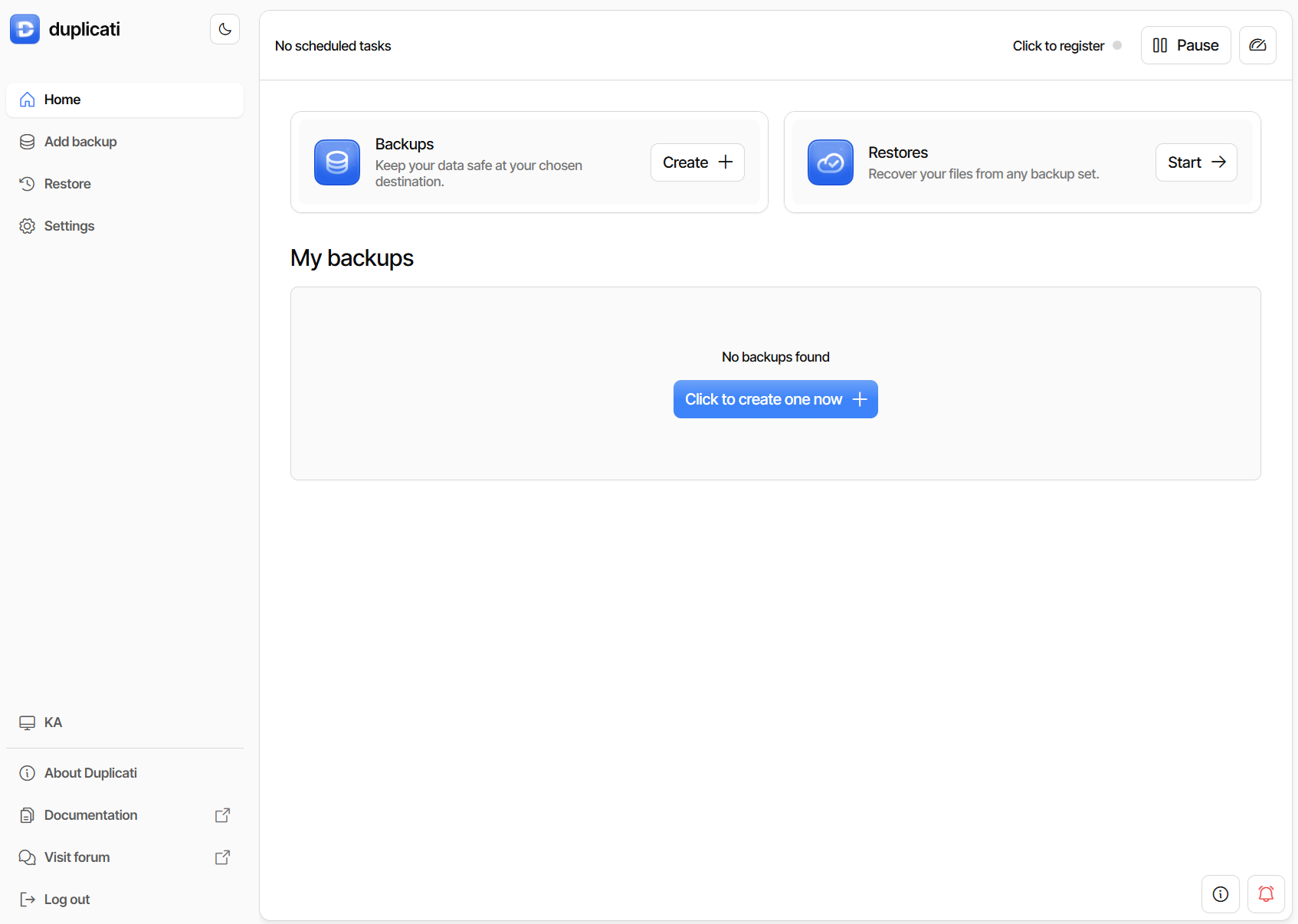
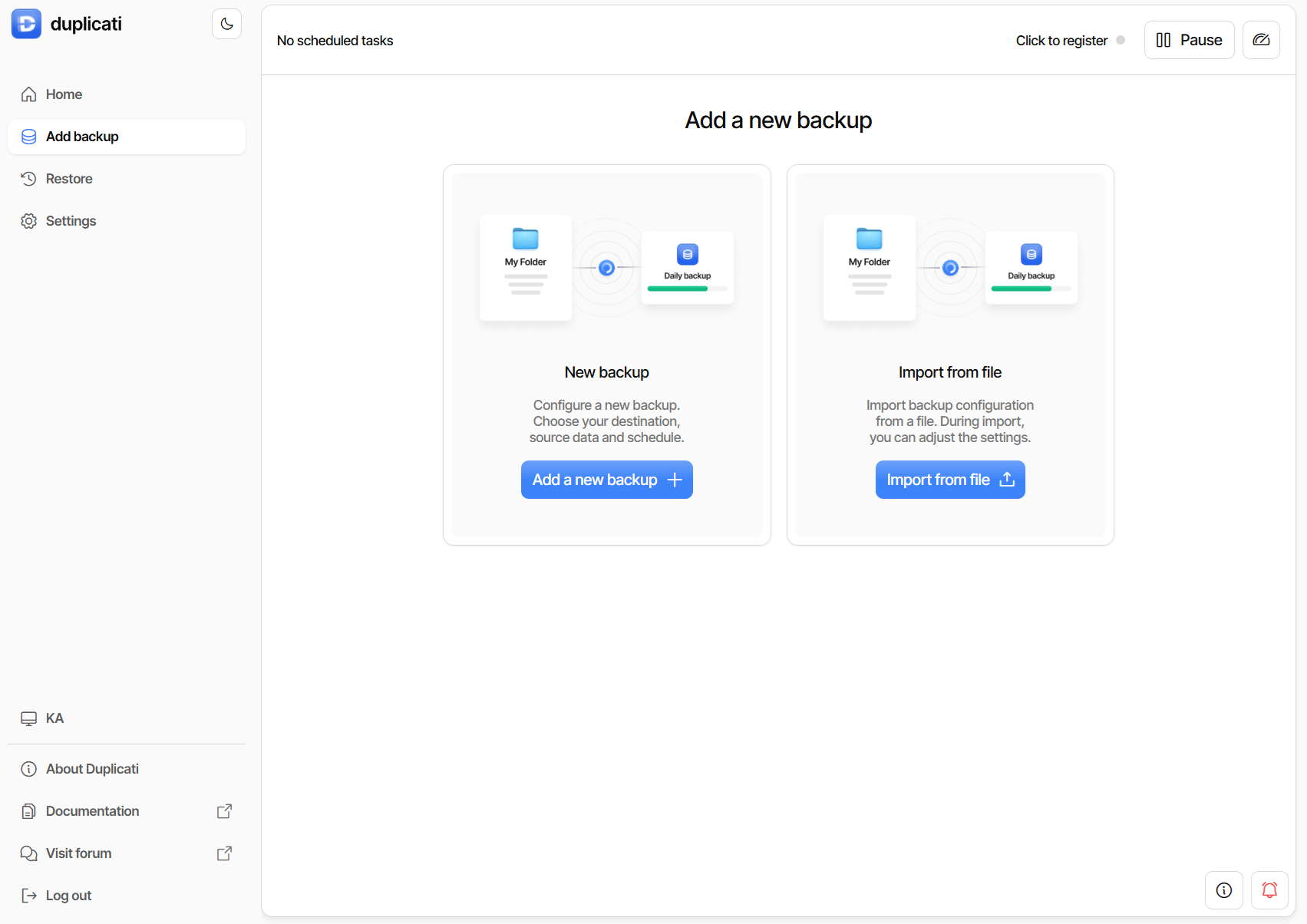
Select Add Backup from the menu on the left and then Add a new backup.
In General backup settings select a name for your backup, encryption type and set the password. You are free to choose any name that suits you; we will use My Backup here. Once you have named the backup, move on to the encryption type. We suggest you leave the encryption on AES-256 encryption, built-in.
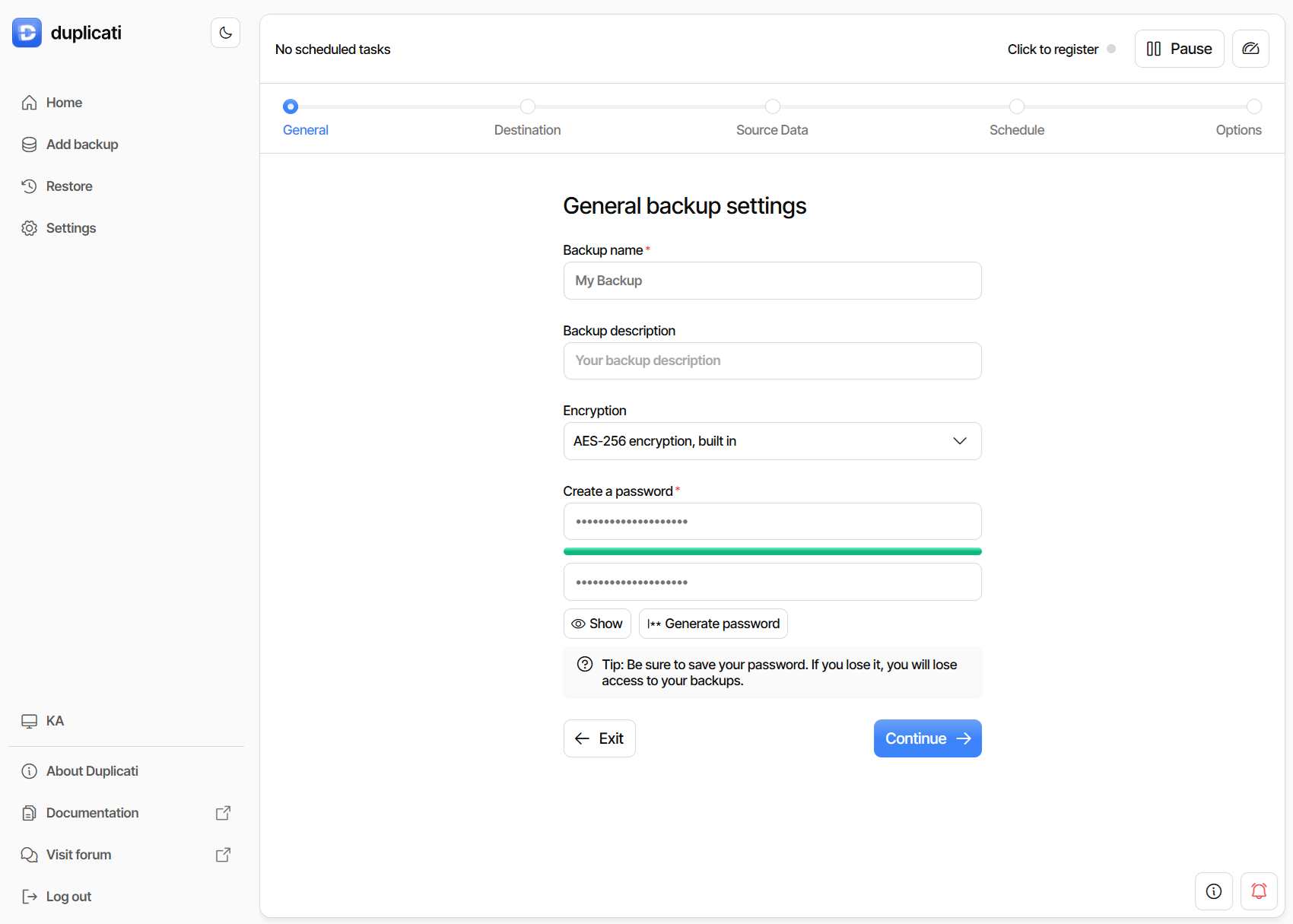
Once you set your password, your data will be encrypted before being sent to the backup destination, ensuring that you and only you can read this data. Choose a strong password and make sure you store it somewhere safe (like in your password manager)! Keep in mind that there's no way to restore your backup if you forget your passphrase. Continue by clicking Continue.
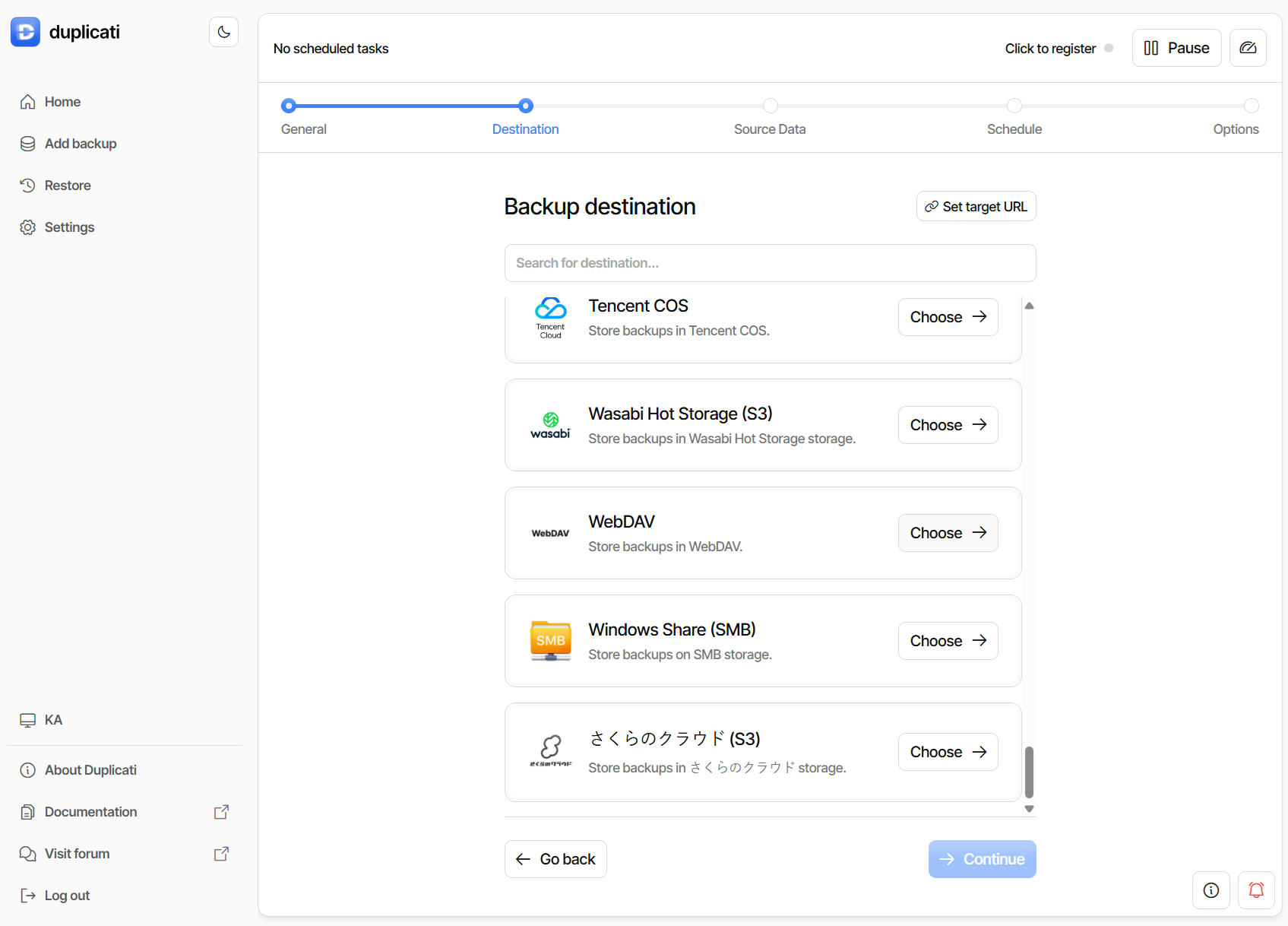
Now you need to choose where to store your backup (Backup destination). Since Koofr provides a WebDAV interface, select WebDAV based option on the drop-down list.
The next step can seem scary, but do not fret. In the Server field enter app.koofr.net and for Path on server enter dav/Koofr/My Backup. The path must start with dav/Koofr/ and the last part My backup is the name of the folder where the backup will be stored. You can choose any folder, but we decided to use the same name as we used for the backup name in the first step.
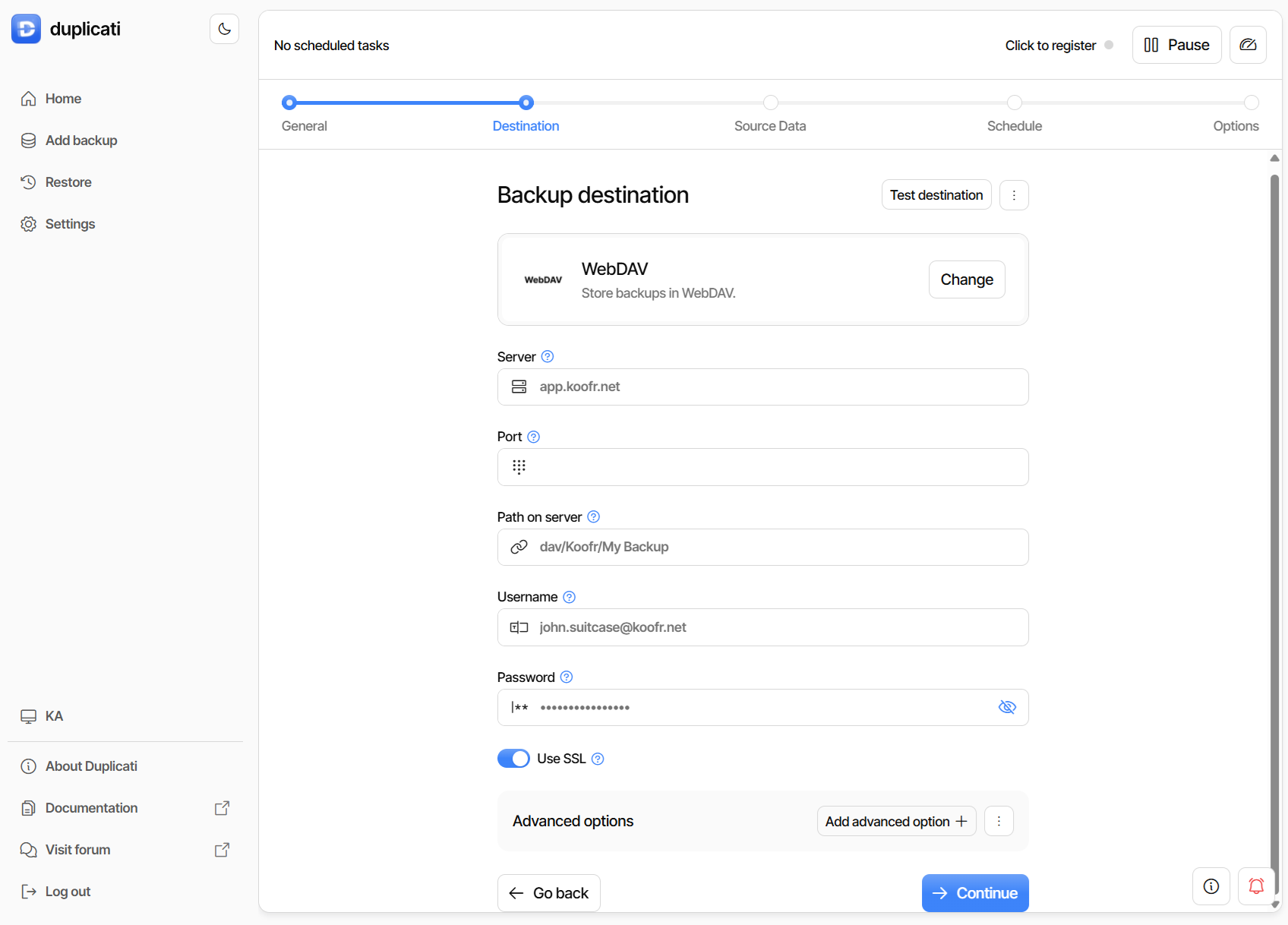
In the Username field enter the email you use to sign-in to Koofr.
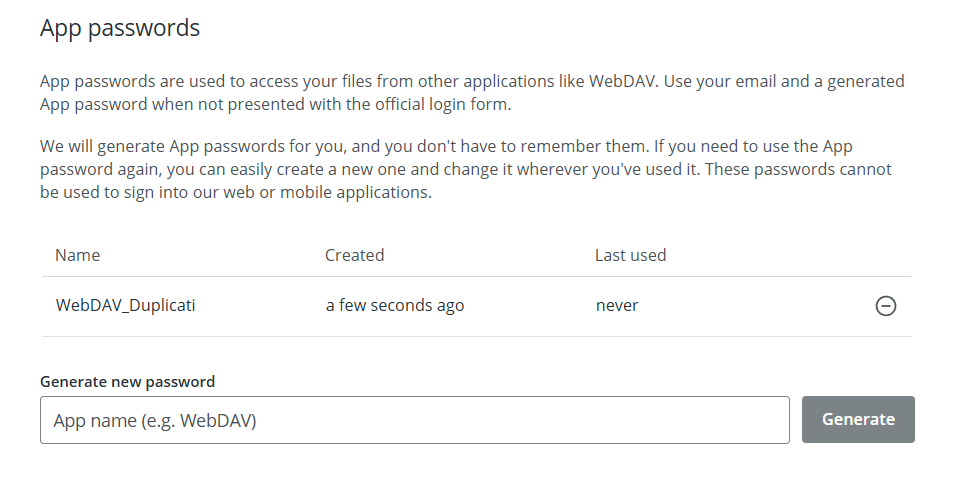
Let's move to your Koofr account for a moment. You will need to generate a new application-specific password to use with Duplicati. Our video tutorial How to generate application-specific passwords for WebDAV connections in Koofr can help you do that.
You can generate a new password in the Koofr Account Menu in Preferences under Password. Scroll down to App Passwords, click into the Generate new password field, name the new password and click Generate. We named our password WebDAV_Duplicati as you can see in the picture below. Use this newly-generated password in the Password field in Duplicati.
Use this newly-generated password in the Password field in Duplicati.
Finally, toggle the switch new to the Use SSL text.
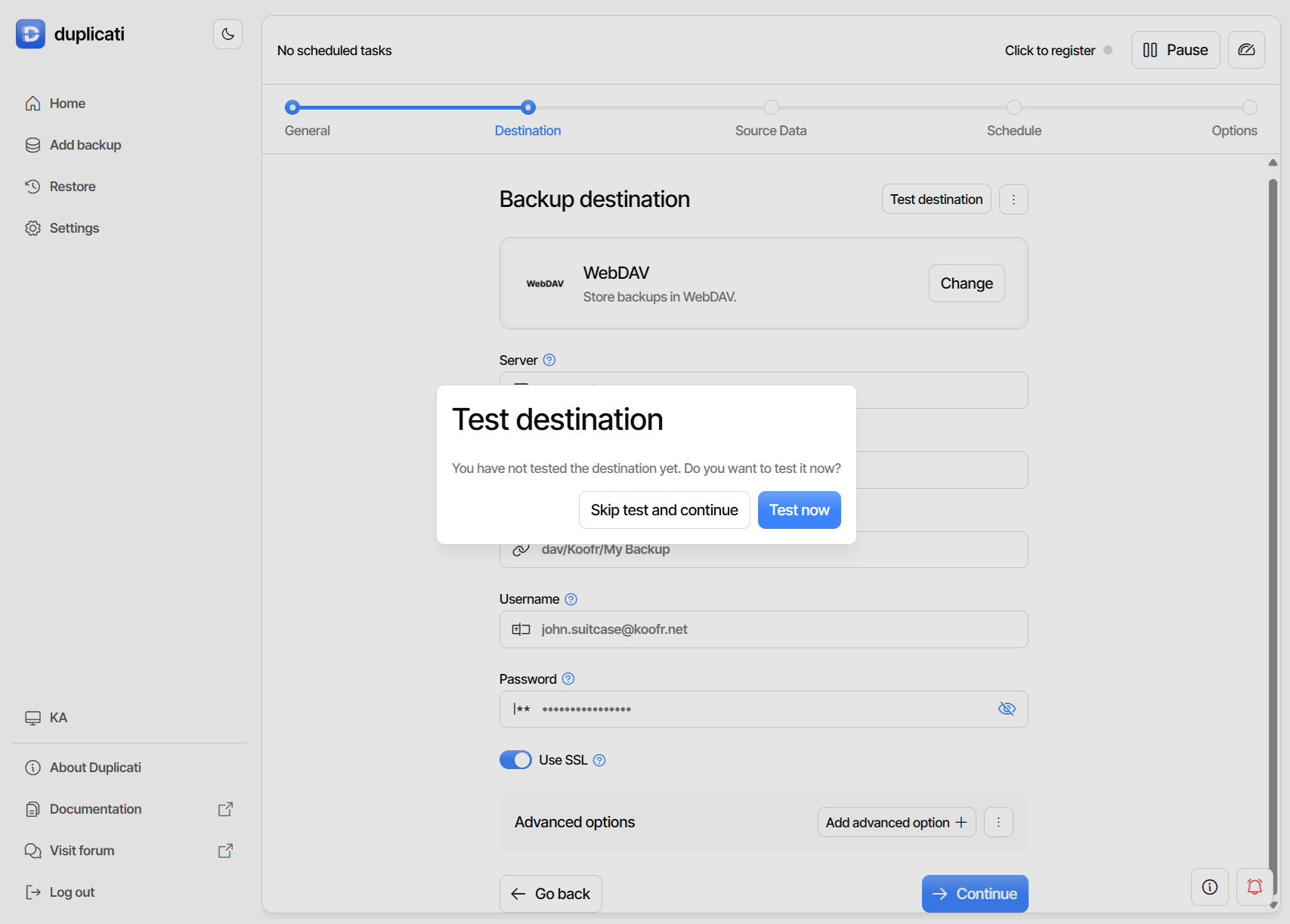
Once you've entered your username and password into Duplicati, click Continue. A new window will pop up, asking you for destination test. Click Test now.
In the next step, you'll have to choose the source of files you want to back up.
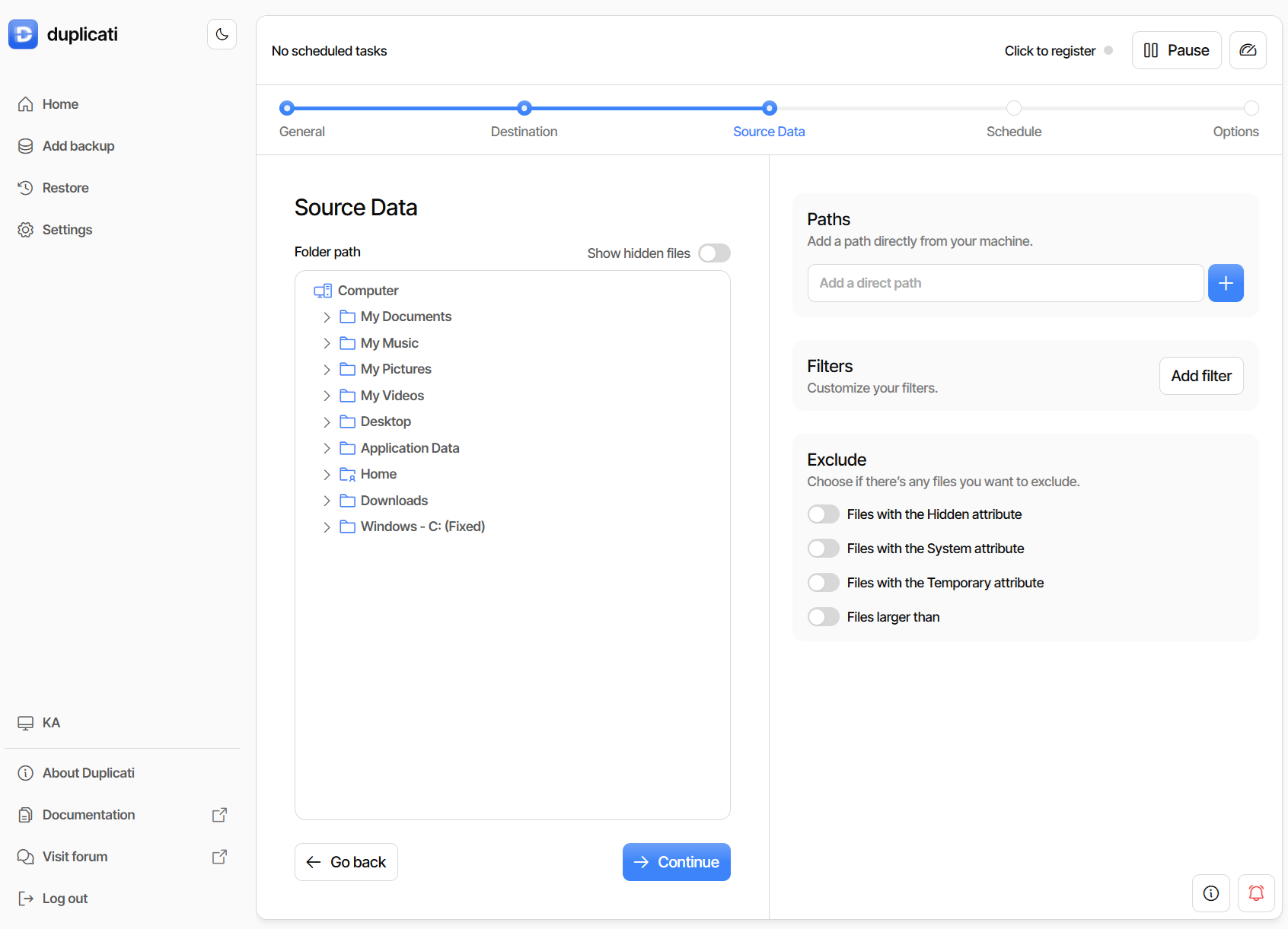
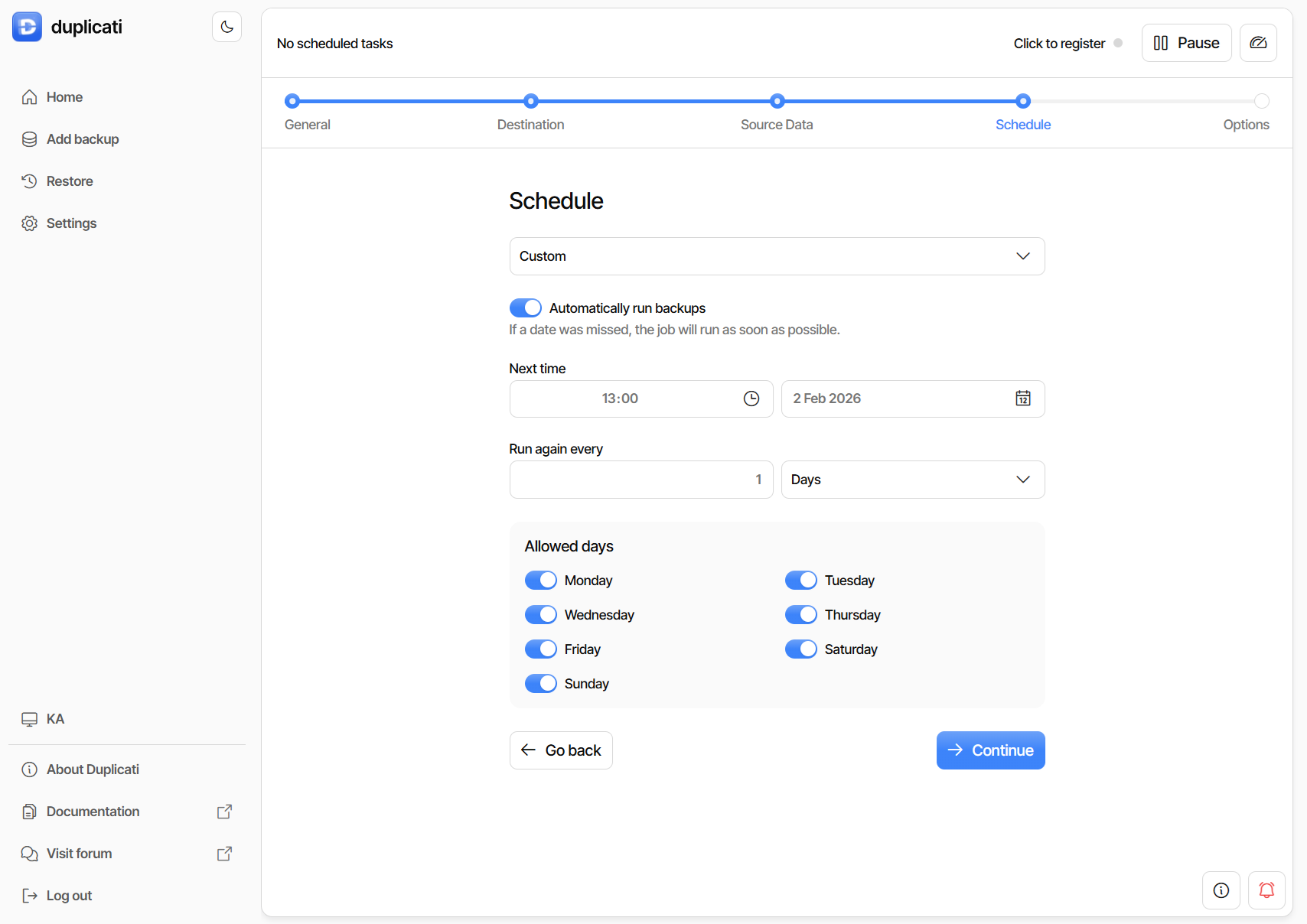
Once you are sure, you chose all locations you want to backup, proceed to the next step – Schedule. Choose your preferred time for backups – we advise you back up at a time when the computer is less likely to be heavily used and to make backups regularly, at least once a week if not daily. You can choose between Daily, Weekday, Weekly Monday or Custom. You can also choose not to run backup automatically. We choose Custom.
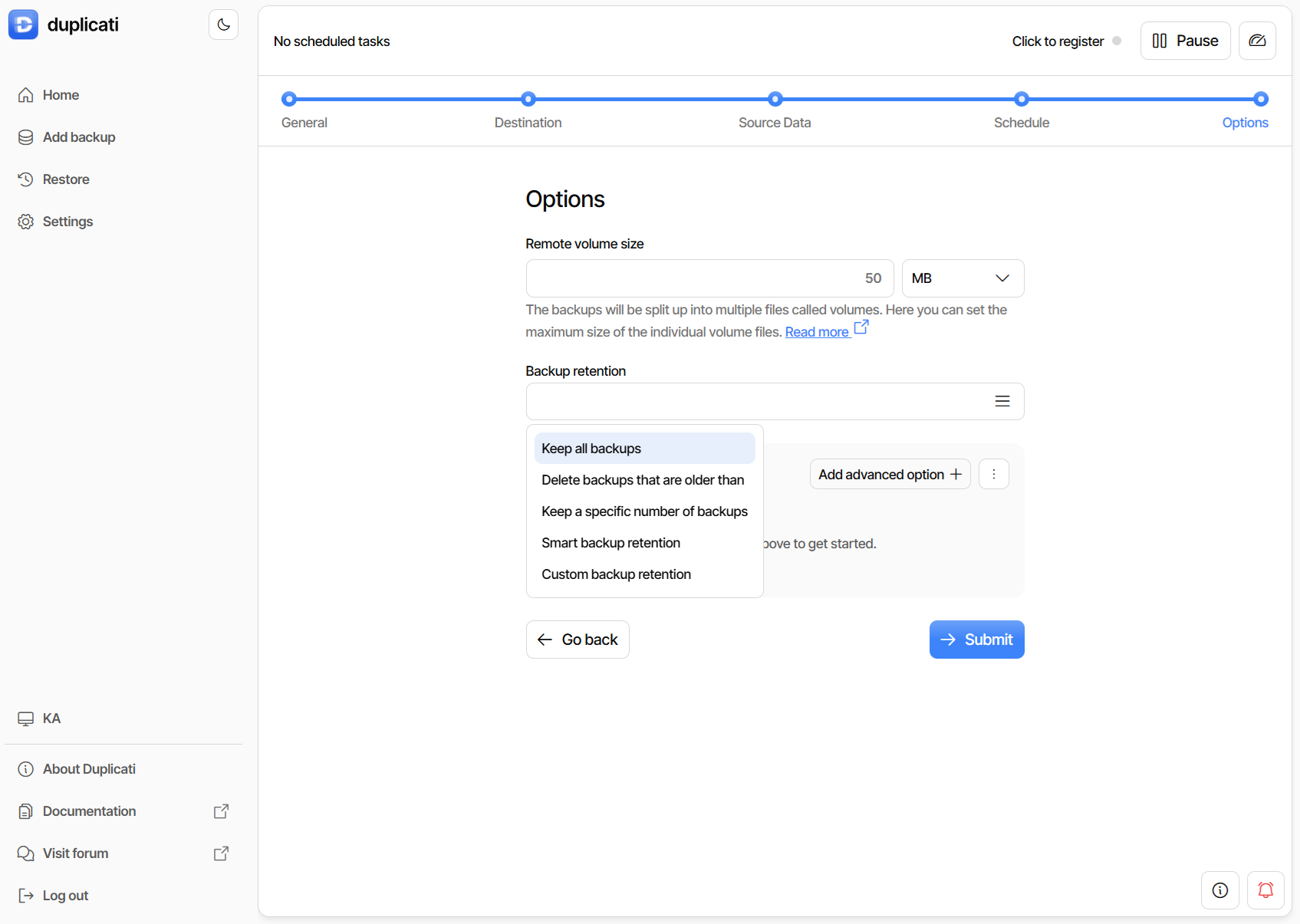
Click Continue, and you will land among some more settings - Options. As Duplicati uploads the backups in chunks, the upload volume size determines the size of a single uploaded chunk. The default of 50MB suits most home user connections, but you might want to lower this to a few MB if you are on a slow internet connection.
The last option determines how many backups will be kept on Koofr: the more backups you keep, the further back in time you will be able to go when you restore. However, the more backups you keep, the more space on Koofr will be used. Keeping two weeks worth of daily backups or three months worth of weekly backups seems a good choice for a home user. You can also add advanced options like auto-cleanup, unittest-mode, etc.
In the last screen, you are presented with a summary of the configuration. It is important to Start the backup.
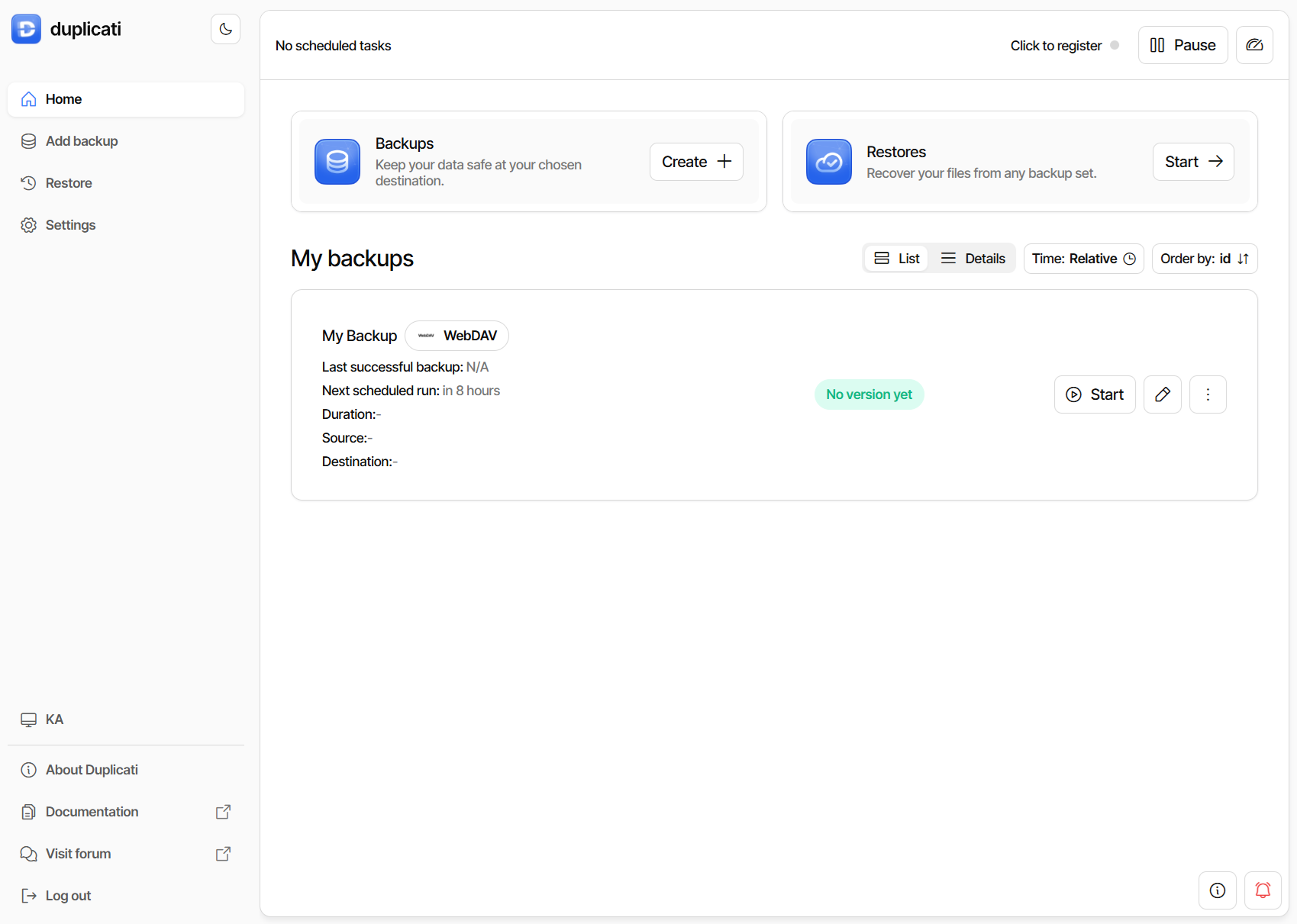
Check if everything went OK
Let's just check if everything went OK. You should find red Duplicati icon in your tray. When you click on the icon, you will be redirected to the Duplicati application in your browser. When the backup completes, you will see a summary of a backup, along with the number of versions, possible warnings and errors.
You will also see an encrypted backup in the selected folder on Koofr.
And this is it, we're done! Happy backup with Koofr!
Stay safe. Backup your data with Koofr.
Editor's Note: This post was first published in 2015. We've updated and enhanced the content to improve clarity and detail. Whether you're revisiting or reading it for the first time, we hope this improved version offers an even better experience.
Try out Koofr yourself and see how easy backup can be.
Join us on the Koofr subreddit and share your feedback or tips. We’d love to hear from you!